For Shipping
Companies - (Engine Department), we have put up this
MS Excel project.
Actually, it comes in two
parts - Part 1 is for both the office as well as for the ships'
use. Part 2 is for use in the office only.
Part 1
Has 4 sections (in
addition to an 'Info' page)
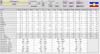
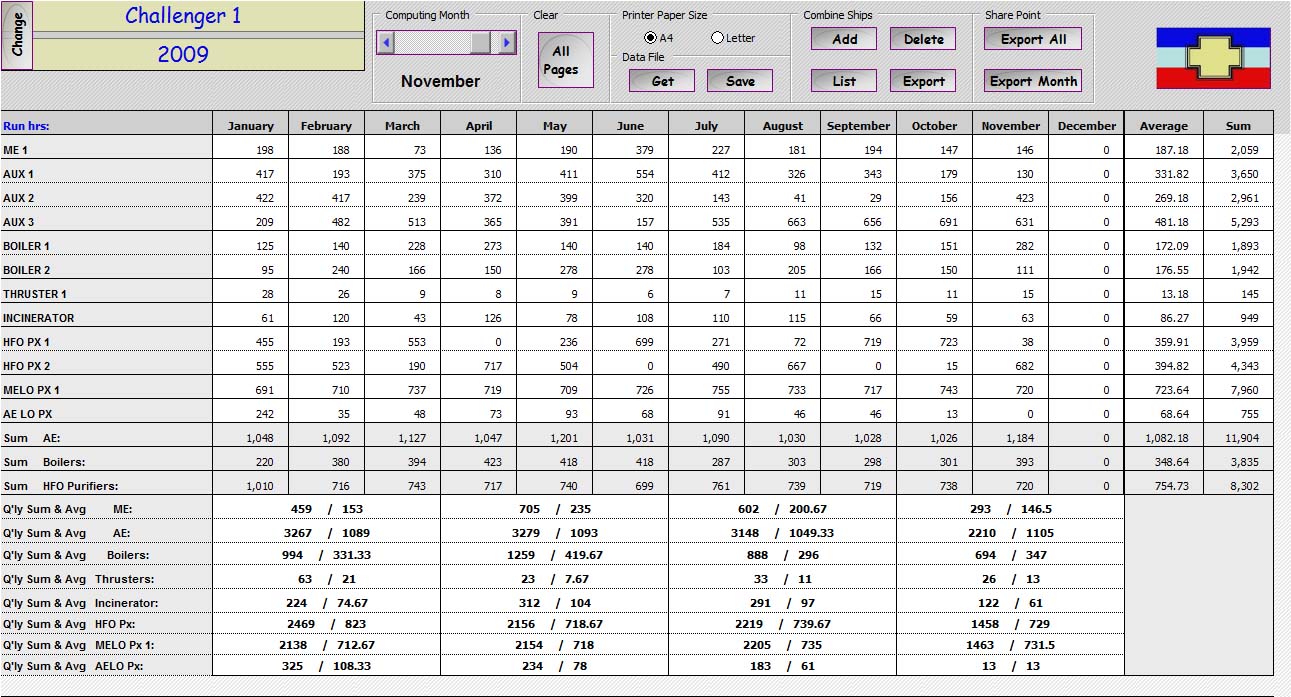
Summary - Tabulates
the data from the month data pages. In this page there are
command buttons for several tasks. At the end of each month, data is saved
to 10 kb encrypted text files from a button on this page. This file is
e-mailed to the office. The office can also extract text only copies of
the project (no macros) for sending to charterers on for posting on the
intranet for inter-departmental viewing (say, to the accounts department).
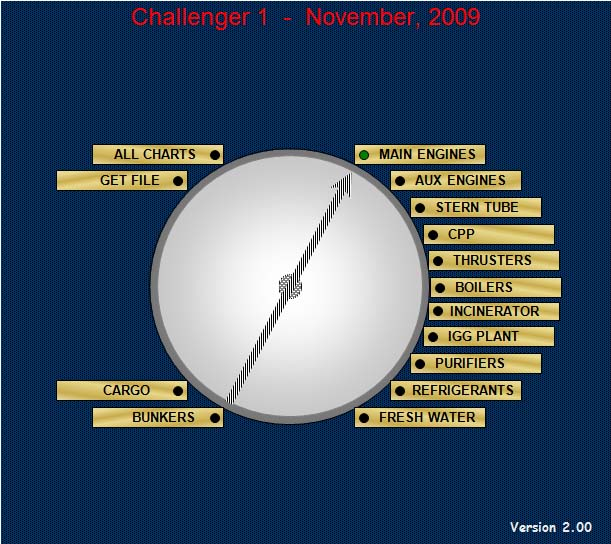
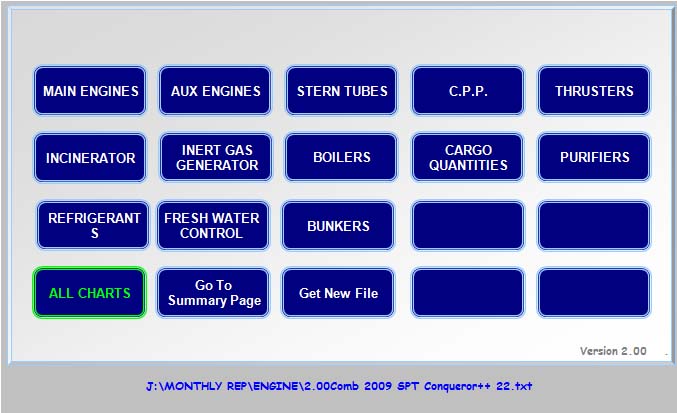
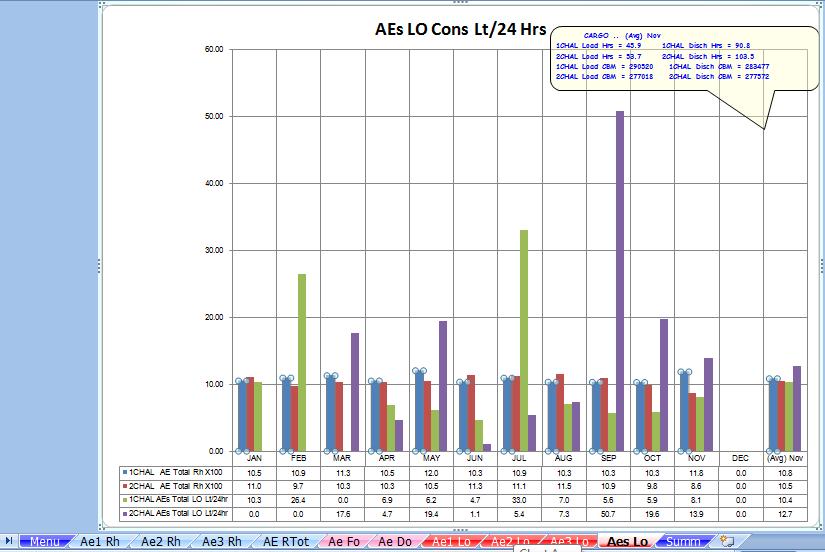
Charts - Allows the
user to select the charts to view in equipment groups.
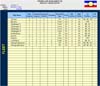
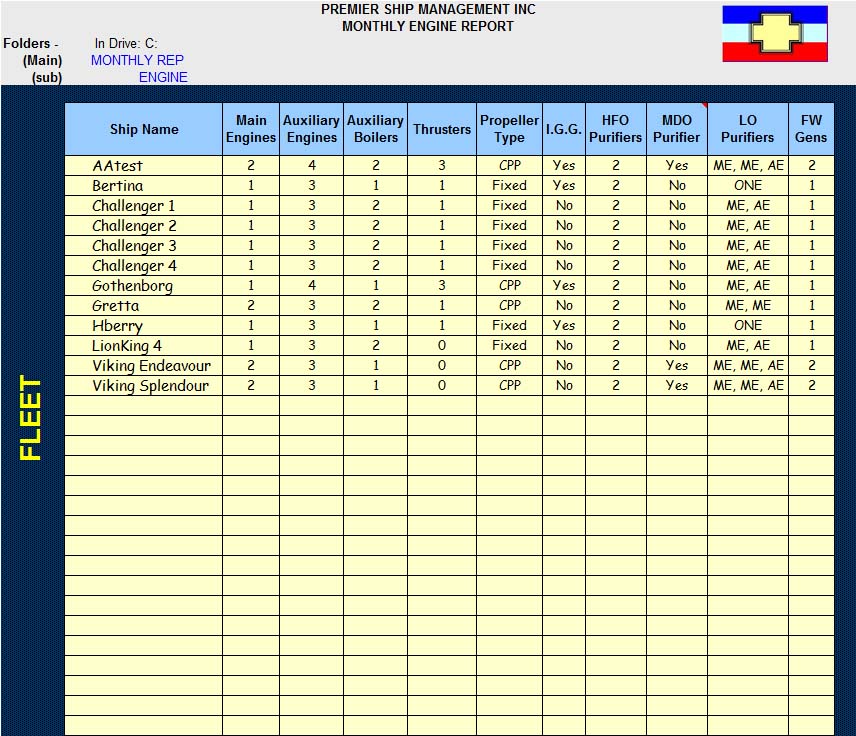
Fleet Setup -
In this section, the office enters the names of the ships and
the number/kind of equipments on
board. Example: 2
MEs, CPP.
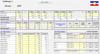
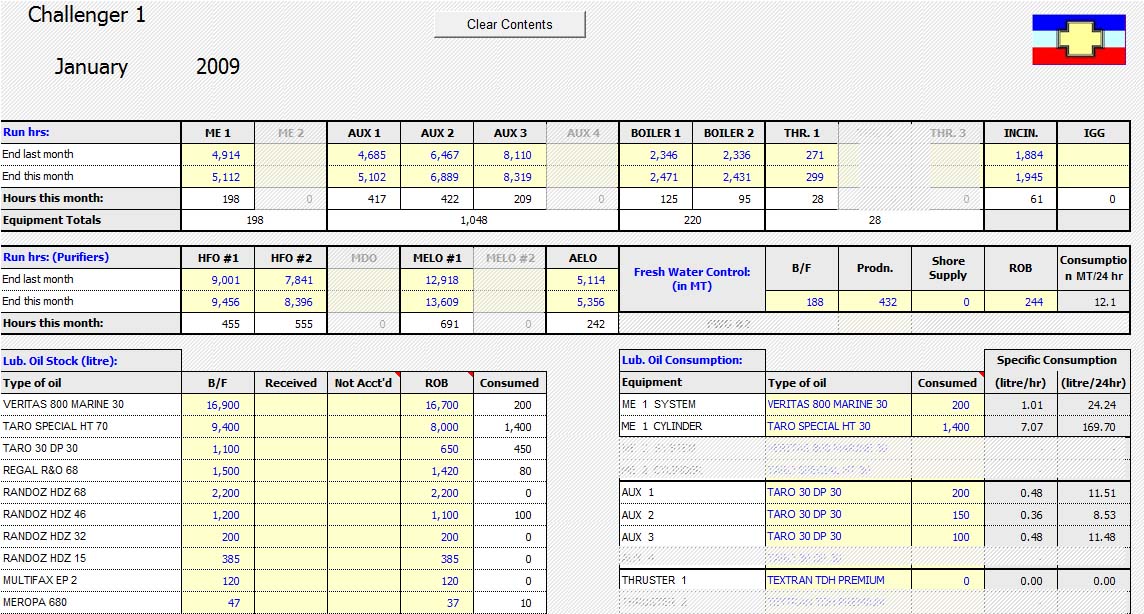
Months - January to December. Here the ships
enter the data for running hours, consumptions / ROBs. Specific
consumptions are computed and linked to the Summary Page. Non-existent
equipments are masked out.
Part 2
Has 2 sections
Data Page - Has
command buttons to enable the user to Get Data saved by project 1 and
some others such as selecting the page print size (A4 or Letter).
Charts - Allows the select the the
charts to view in equipment groups.
Downloada free trial copy. The
zipped document should contain six files.
The main project, an encrypted text file named 'FleetSetup'.txt,
two encrypted text files with sample data for for two ships, the 'combi'
project, and a
sample 'combi' having data for 4 sister vessels.
The user will
need to save the 'FleetSetup.txt' file in the folder 'Monthly Rep' in the root
directory where the main project is saved. Example:
"C:\Monthly Rep".
for a quote basis a one time fee per fleet with / without annual support
and with / without amendments to design or code.
The project pages are protected but there
is no password.
2
The user is required to enter data in the
cells with yellow background only (unlocked cells).
3
The summary page contains the initial
data for list of lubricants / greases and refrigerants on board. Add /
Delete as necessary.
4
The lubricants for main equipments such
as ME System Oil are assigned in the Jan~Dec pages, in cells K19 and below.
Add / Delete as necessary.
5
The pages from Jan to Dec must be
identical in column widths and row heights. If the user changes the widths
or heights in one the same must be done for all pages from Jan to Dec.
6
For the Ship - Selecting the Ship from
the drop down box would be required only once.
When the ship is selected, instructions
like the following are executed ---
All charts are deleted and then created for existing
equipments.
Rows are hidden or exposed
according to the equipment on board as typed in the SETUP page.
Cells with non-existent equipment
on board are masked in the pages Jan ~ Dec.
The project file size is 1.8 MB and
when zipped is over 330 KB and not cost effective for e-mail nor for
storage on HDD.
Therefore, there are option
buttons for saving data-only files and retrieving them.
7
The project file size is 1.8 MB and
when zipped is over 330 KB and not cost effective for e-mail nor for storage
on HDD. Therefore, there are option buttons for saving data-only files
and retrieving them. These files are of very small size (typically
10kb) and contain data for the entire 12 months but are saved with active
month . The ships e-mail ONLY these small files at end of each month.
The office saves these files to folders for each vessel. Folders are
automatically created in the root drive ('C', 'D', 'J', etc.) of this
project - The default parent folder is "MONTHLY REP". Within this
folder, a default sub folder "ENGINE" is created and within this, a
sub-folder for each vessel is created. You can change the folder and
sub folder names by changing the values in the Setup page in B4 & B5.
(Unprotect the page, first).
8
Averages for bunkered oils and
refrigerants for any computing period is the total for that computing period
divided by the number of supplies in that period.
9
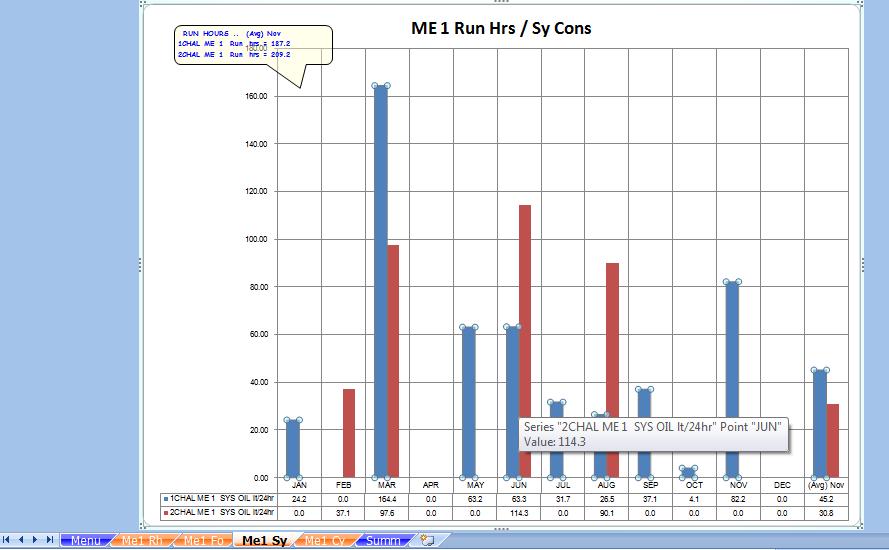
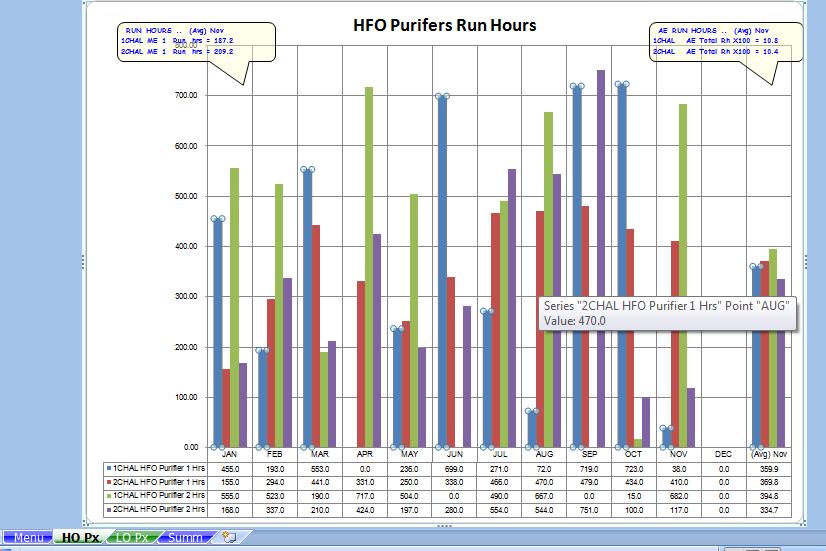
To see the value at the point in the
charts, the user can put the mouse over the point and read the data from the
pop up tool. The user may have to first click on the Plot area to make
it 'active'.
10
The user is advised not to
insert/delete rows or columns in any of the pages as this will mess up the
code.
11
The 'Clear All' button on the
'Summary' page copies the ROB figures from Dec to Jan and then clears all
other data entry cells in the pages from Jan to Dec.
12
When starting for the first time,
please remember to 'Clear All' from the 'Summary' Page and then 'Clear
Contents in the 'Jan'
13
Do not change the names nor the order
of the pages and section titles.
14
If the ROB is nil, please type 0. Do
not leave the cell blank. Same for Cargo Hours / Quantity.
15
For incinerator, the consumption
should be entered in either MDO or MGO.
16
To give the office an idea of the
consumptions v/s cargo work, the user enters data in cells H65:H68 for each
month. Set the units in cell I67 in the Jan page. The hours and
quantities should be entered in whole numbers. Also, quantities can be
rounded to every 1000 CBM. There is no real need to give the cargo figures
exactly to the unit. Similarly, for RO/RO/ Vessels, cargo units can be round
up to nearest 100 units.
17
Each project needs the file
FileSetup.txt to be saved in the folder MONTHLY REP In Drive: J: ( In Drive:
J:\MONTHLY REP ). See Setup Page - Cells B3 and B4.